07. Introducing the Lighting Panel
In order to bake our scene we needed to open up the lighting window. This window allows us to control a lot of settings that will make our scene optimized and really come to life.
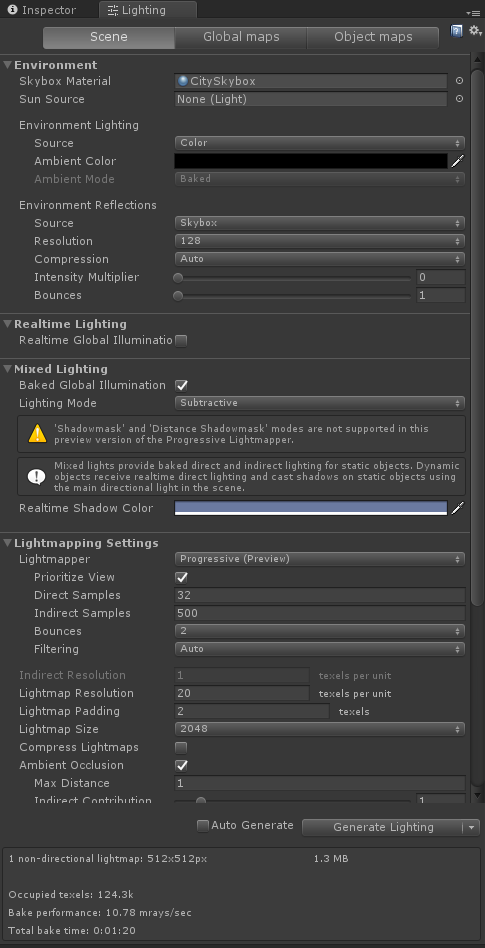
At the top, it is divided into three tabs: Object, Scene, and Lightmaps.

First up, we have the scene tab
This tab really lets us control the settings of the light in our scene. It broken into 6 sections: Environment Lighting, Precomputer Realtime GI, Baked GI, General GI, Fog, and Other Settings. We will take a closer look at this tab over the next few videos.
Next up, we have global maps
Once we bake a scene, we can come to this tab to check out what our light maps actually look like.
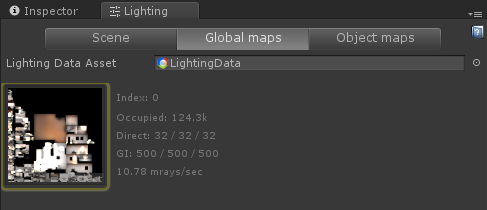
Here you can see the files and textures were actually created. It is pretty hard to glean information from the image, but this tab is useful for seeing how much data is being stored tuning your parameters to optimize the number or size of textures.
Last up, we have object maps
In a similar fashion to the inspector, this tab allows us to look at the specific properties of a selected Game Object. By using the drop down, you are able to select from a variety of properties that would affect the lighting of our objects:
- Albedo
- Emissive
- Realtime Intensity
- Realtime Direction
- Realtime Charting
- Baked Intensity
- Baked Direction
- Baked Charting
- Baked Shadowmask
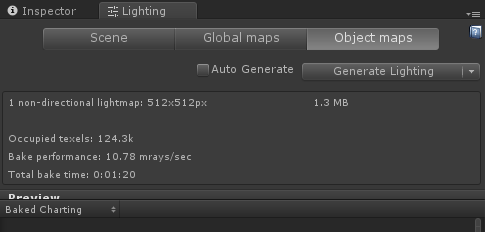
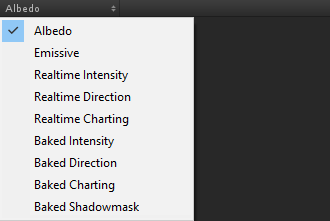
By default, the dropdown selects Albedo. Click on the Book_Shelf in the inspector. Then go to the Object maps tab and select Baked Charting.
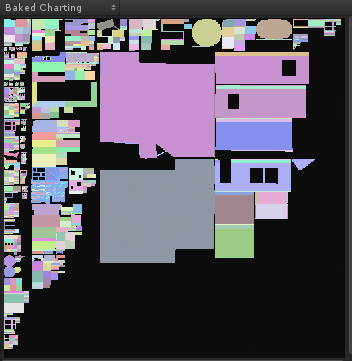
When you do so, you will see the map that the Book_Shelf is in. An if you press 'F' while your mouse cursor is over the the map, you will zoom into the specific area that relates to the Book_Shelf. You can also use your Scroll Wheel to zoom in and out of the map.
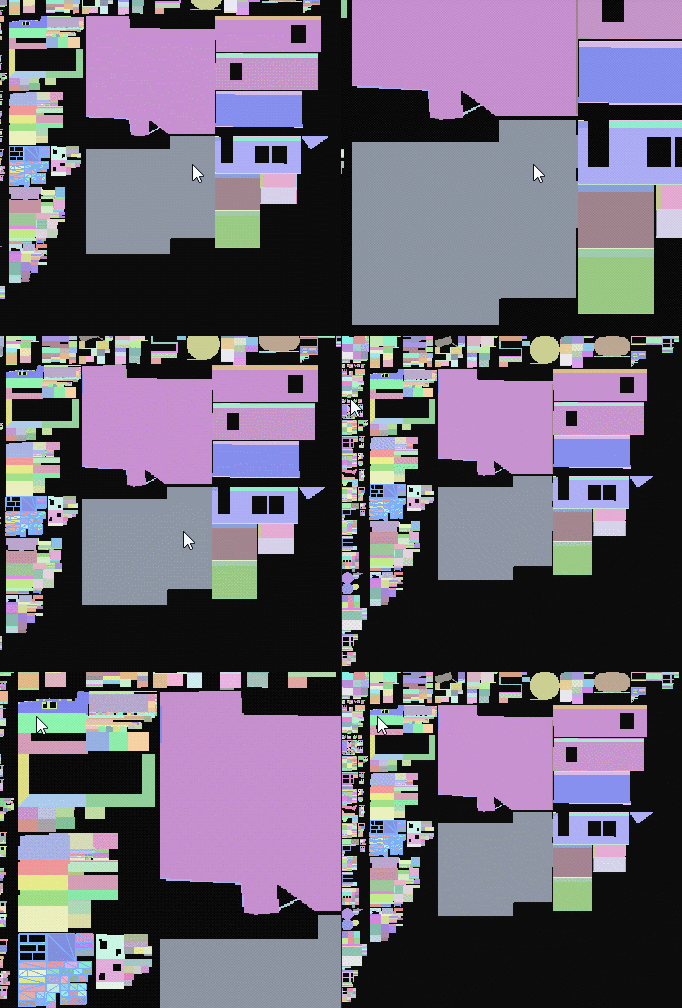
Next up, we will be diving A LOT deeper into the Scene view and how we can use it to optimize the lighting in our scene. But before moving on, feel free to explore other Game Objects and take a look at what their light maps look like. Now's a great time to appreciate the fact that Unity has this built in and you don't have to code it yourself :)